
To begin Programming in PHP or to check an existing PHP site or script on your own computer, the very first question you'll face is:
How to run PHP CODE or any File ending with .php extension on My Own Computer? What's the easiest way?
A PHP Program is the result of many lines of PHP CODE & often includes many PHP files. Also, since PHP is a Scripting Language, CODE written in PHP files are often called PHP Scripts. These are all interchangeable words. So don't get confused by these terms.
A Short Introduction:
The easiest way to install & run PHP on your own computer is using a software like XAMPP.
There are other similar software bundles like MAMP, WAMP etc. that can install & run PHP, but:
XAMPP works well in all the major Operating Systems like Windows, Mac & Linux the same way. So XAMPP is easier for beginners.
PHP can be used for different purposes, however, the most popular use of PHP is as the server side programming language for web development. Naturally, to run PHP program for web development, you also need a web server like Apache Web Server, and a database server like MySQL or MariaDB.
You may install these separately on your own computer, however, it is often difficult for beginners to install these tools individually and combine them to run PHP programs. XAMPP does all these for you with just a few clicks.
OK, enough with the introduction, now follow the steps below to run your first PHP CODE:
How to Install PHP:
- Download XAMPP from here and then double click the downloaded installer file to begin XAMPP installation.
- Just follow the instructions from the installer and you'll be done installing PHP within a few clicks.
How to run PHP Program:
- After the installation of XAMPP is successful, open any CODE Editor.
Install a new CODE Editor if you don't have one installed on your computer. My Favorite is Visual Studio CODE (works on Windows, Mac & Linux).
Examples of other popular CODE Editors are: Sublime Text (works on Windows, Mac & Linux), Notepad++ (works on Windows only) etc.
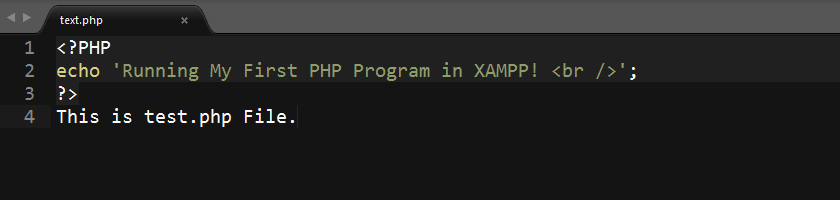
- Write the following PHP CODE in the CODE Editor of your choice:
<?PHP echo 'I know how to run a PHP Program in XAMPP! <br />'; ?> This is test.php File. - Save the file in
XAMPP Installation Directory\Web Root Directory
Note-1: Default XAMPP Installation Directory in Windows isC:\xampp
Note-2: Default Web Root Directory in XAMPP ishtdocs. All your php files will have to be in thishtdocsfolder.That means, for a typical installation of XAMPP on Windows, you will have to save the PHP files in
C:\xampp\htdocsfolder. - When you save the file, name it
test.php
(test.phpis just an example, any valid file name with.phpin the end will work).Note: when saving this file, make sure it has no
.txtextension at the end. Some Editors place.txtat the end of the file name, so it becomestest.php.txtinstead oftest.php. To avoid this, when you save the file using any Editor, place double quote around the file name: e.g."test.php" - Then, go to XAMPP installation folder (typically,
C:\xampp) and runxampp-control.exe
Note: if your Operating System hides common file extensions, then you'll see
xampp-control, instead ofxampp-control.exe - In the
xampp-controlwindow, click the start button beside Apache.
Later, if you need database, you'll also have to start MySQL by clicking the start button beside MySQL in
xampp-control. - Now open your favorite web browser like Firefox, Google Chrome etc. (on the same computer where you've just installed PHP) & enter this LINK:
http://localhost/test.phpin the browser's address bar (or simply click http://localhost/test.php if you are reading this post on the same computer where you've just installed XAMPP & running PHP).
Two things to note here:
- On the web, localhost means your own computer.
- The test Link must match the file name you've used to save the PHP CODE in step-6 above. So instead of
test.php, if you've saved the PHP file asexample.php, then your Link should be:
http://localhost/example.php
- If your PHP installation and the test PHP file you've just written is working properly, then you should see the following two lines on your browser:
I know how to run a PHP Program in XAMPP!
This is test.php File.Congratulation! ✌️
Now you know how to run PHP CODE or file ending with
*.phpextension on your own computer using XAMPP. Perhaps it is time to learn some proper web development with PHP!
PHP Learning Resources:
The best way to learn programming is by doing a lot of practice. I recommend the following resources for beginners:
- PHP for Beginners:
This is a well organized & beginner friendly online PHP learning course. While you can learn PHP from articles & tutorials here & there, they often lack completeness. That's why it's far easier & more effective to begin the learning process from a course like this.
- PHP Manual: Bookmark this official PHP manual. Reading the manual is not the easiest way to begin your PHP learning process, but you'll always need this as a reference.
Happy Coding 😊
Troubleshoot PHP installation
Uh, Houston, we've had a problem!
If the above instructions worked for you & you can run your PHP Scripts just fine, then you don't need to read this section, however, if you didn't get the expected result from the above instructions, don't panic, we've all been there. To get you started with what's going on:
If PHP is NOT working but the web server Apache is working, then only the following one line result will appear:
This is test.php File.
If you are getting an error instead, then check out the comments here or Google for that particular error text & with any luck, you'll receive tons of results.
Note: If Apache, MySQL or PHP was already installed on your computer, then before installing XAMPP, you may have to uninstall the existing Apache, MySQL and PHP installations, especially if they were installed as service. It's possible to keep multiple installations, but that's for more advanced users.
Thanks a whole lot, it worked
Nice tutorial
Thanks 🙂
Parse error: syntax error, unexpected 't' (T_STRING) ->How to resolve this type of error
This means you have an error within your PHP CODE. Write proper PHP syntax, don't even misplace a semicolon
;, then your CODE will run without any error.Can we use notepad instead of notepad++
You can, but notepad was not designed for coding. So it's far better if you use a code editor like notepad++